
TASKalfa MZ7001i/MZ6001i/MZ5001i
Enhanced Device and Document Security
Optimized security protects your business in the latest communications environments.
-
Document management with multiple authentications settings
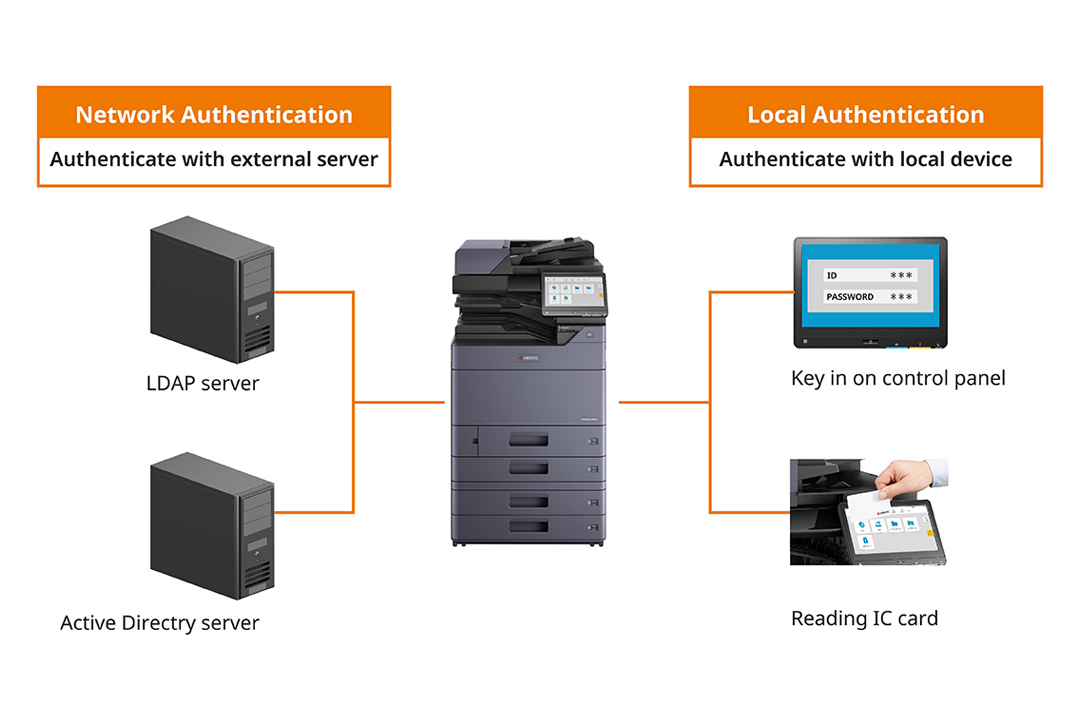
Supports "Local Authentication" that authenticates with the user list registered on the printer and "Network Authentication" that uses an authentication server such as LDAP or Active Directory. By synchronizing user lists from a source such as Windows domains, it avoids the need for registration and management for individual printer users.
Also, with the IC card reader, you can log in just by touching the card to the device *.
*Optional IC card authentication kit is required. -
A new level of security standards.
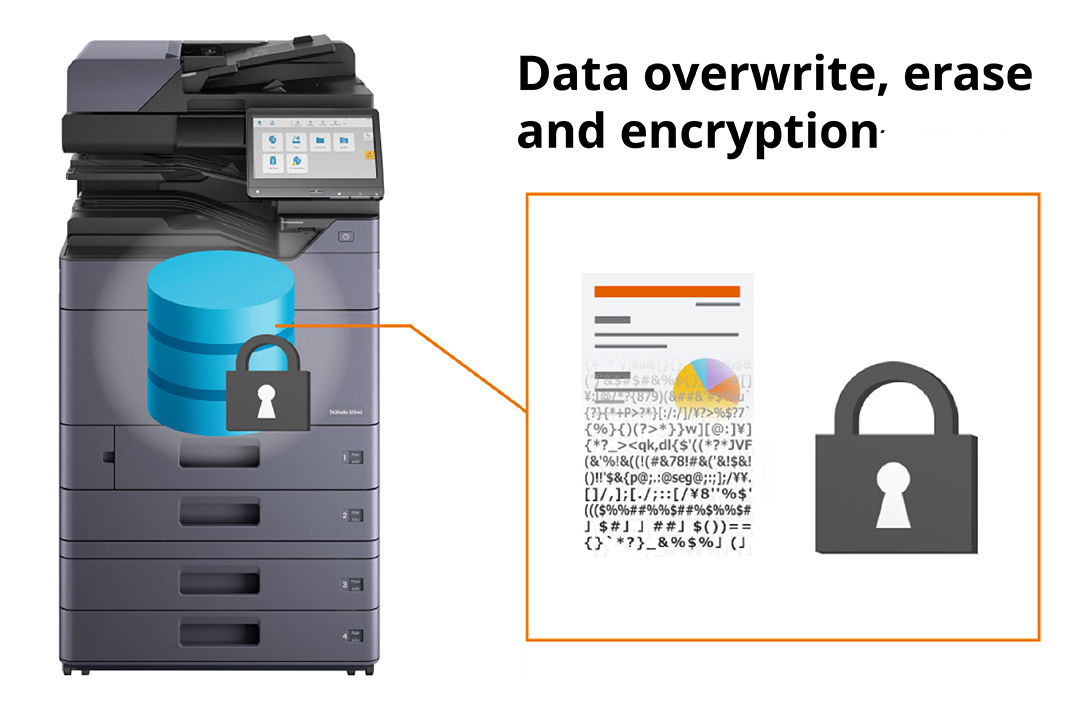
The security features of the internal storage are certified according to Common Criteria (ISO/IEC 15408), which is an international standard for information security, as well as HCD-PP v1.0. *1
Moreover, the device is set to support FIPS 140-3, the federal standard in the US for data encryption in network communications, along with IPsec and TLS communication protocols.
*1 Compliance application pending (as of December 2024).
Meet the latest network security
Supports the use of security features in the latest server environment and communication environment. We have also increased the number of supported security functions, achieving high affinity with security solutions.
[Examples of supported network security features]
・Secure/Multipurpose Internet Mail Extensions (S/MIME)
・Simple Certificate Enrollment Protocol (SCEP)
・Online Certificate Status Protocol/Certificate Revocation (OCSP/CRL)
・Security Information and Event Management (SIEM)
・TLS version 1.3 support
Block malicious program tampering
Even if malicious programs such as viruses invaded the device, it could cause no affection due to strict access permission, preventing infections and spread of the virus to ensure a protected use.
Restrain accessible devices by IP address
Configuring IP filtering allow you to restrict the access of the device to your own network and prevent unauthorized access from outside the company.
Limited functions for visitors
For visitors such as customers and external contractors, it is possible to set up use of the device with restrictions such as "black & white copy only" or "USB scanning only". When the usage prohibition function is turned on, login authentication will be required, only permitted use would be allowed. Maintaining proper security while considering the convenience of visitors.
Enhanced print security
Various settings can be made to reduce the occurrence of user errors and fraud.
-
Private print
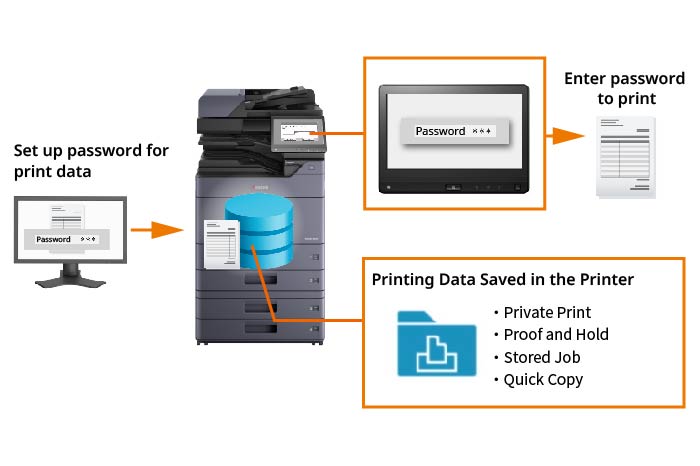
Prevent information security accidents caused by lost or misplaced printed matter by temporarily storing print data in the "job box" in the system storage and activate printing using passwords and access codes. This function does not require any administrator settings and can be used by setting extended functions of the printer driver when printing.
-
User box password settings
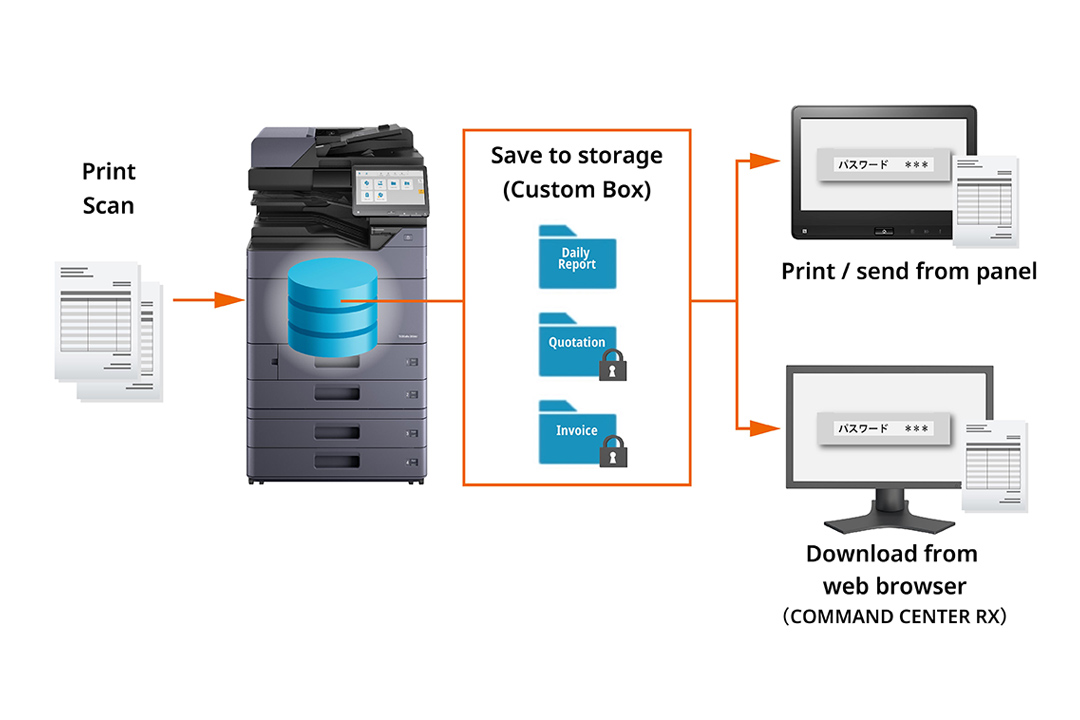
"User Box" can be created in the system storage to save scanned data and print data. You can set up access password for each of the box, preventing unauthorized access or leakage of information by requesting password when access the box from the main panel, printer driver, or web browser (COMMAND CENTER RX).
-
Embed watermark to prohibit unauthorized copying
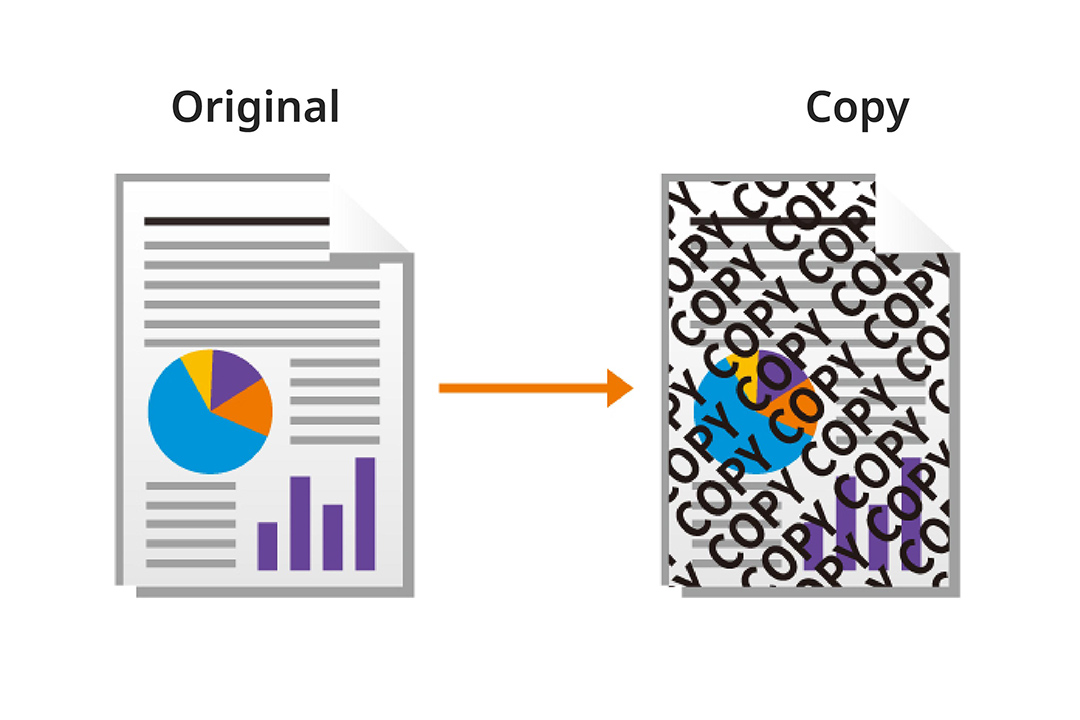
Block printing is a printing method that embeds a special pattern (text and graphics) in the background of a document that stands out when it is photocopied. Making copy-evident pattern makes it easier to identify whether the document is an original or a copy, and helps to prevent information leakage due to inadvertent copying.
Other security functions
●Security password settings ●System initialization settings ●Interface block (USB, LAN port) ●Fax transmission error prevention settings (FASEC1 compliant)
Flexible to various working environments
Works with multiple connection types for different network and equipment
-
Connects to multiple networks
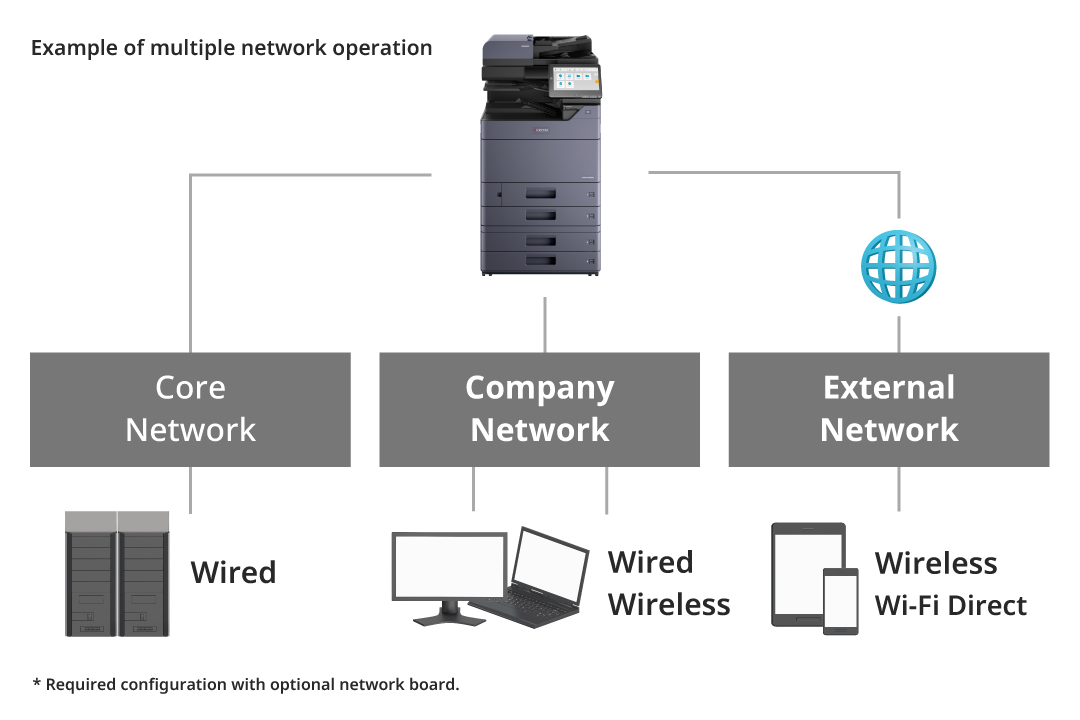
Supports connections with both wired and wireless LAN at the same time, you can still set up Wi-Fi printing even if two wired networks have been installed. Meanwhile, the print data is separately processed for each interface.
*Optional IB-37/51/53 required. -
High Speed Wi-Fi Direct
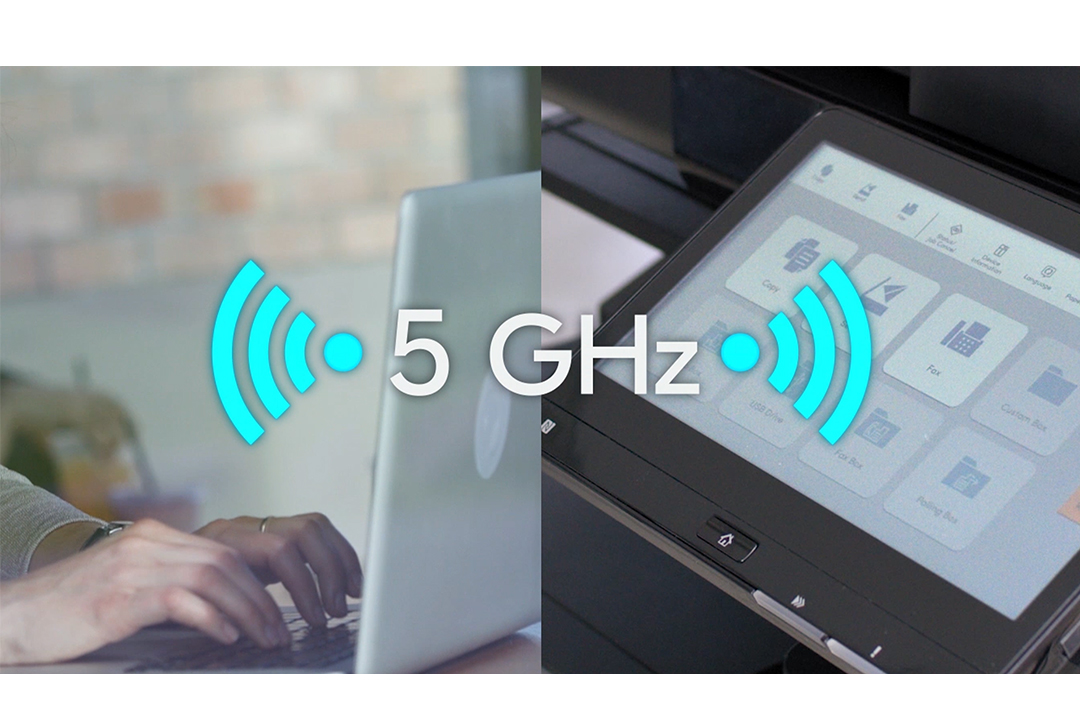
Connects to computers and mobile terminals with wireless LAN functions through Wi-Fi Direct. It even supports the new 5GHz standard for high-speed communications. And equipped with an NFC tag (Near-Field Communication), you only need to place an NFC-compatible Android terminal on the printer's operation panel to connect to Wi-Fi Direct easily.
*Optional IB-37 required.
Numerous of management settings
Unified management of device status and usage status on the network.
-
Managing device usage by departments
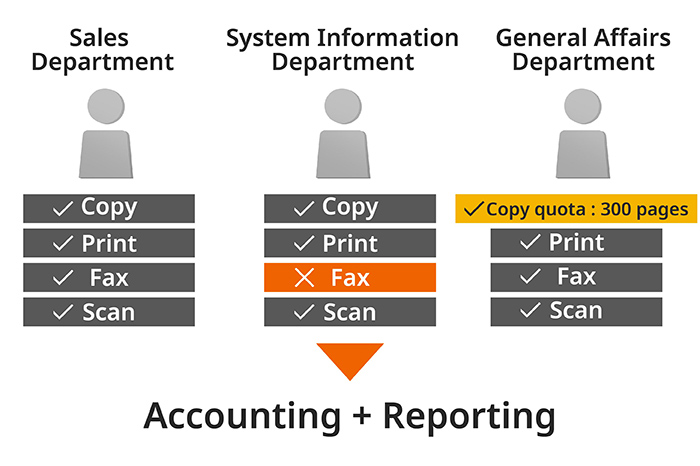
By using department management, a multifunction device can track and compile usage of copies, prints, scans, and faxes for each department. This data can be printed as a report. You can also set restrictions on functions, like limiting copies or disabling faxing. This promotes a streamlined workflow by reducing excessive printing and unnecessary use.
-
Manage device settings from your PC
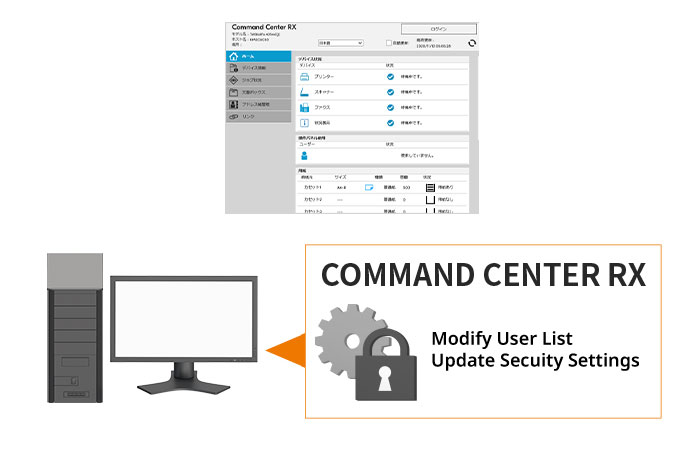
The device administrator can access the Command Center RX of the device via networks from the PC browser, allowing remotely and efficiently check and update various settings, including login user names, network, and security settings.
-
Manage multiple devices in batch
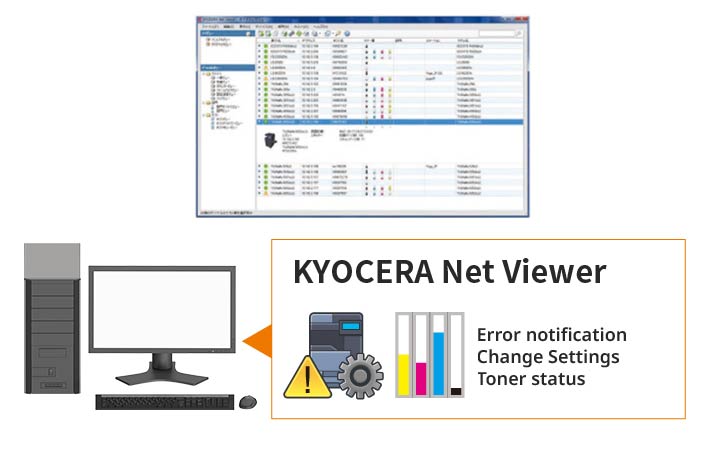
Using KYOCERA Net Viewer to monitor, maintain, and update all your devices locally and remotely on your PC. You can receive timely device error notifications via email and respond quickly to minimize device downtime, and streamline device management tasks such as changing settings remotely and checking toner levels.