
KYOCERA Document Solutions


KYOCERA Document SolutionsSolution Support Page
| Q | How can I add devices? |
| A |
Administrator needs to add devices on the Customer Portal. Please follow the procedures below. |
Add devices
- Administrator adds devices on the Customer Portal
- Log in to Customer Portal.
- Select Devices tab.
- Select Add.
- Enter the device's serial number, PIN code, and authentication information (username and password), then click Add.
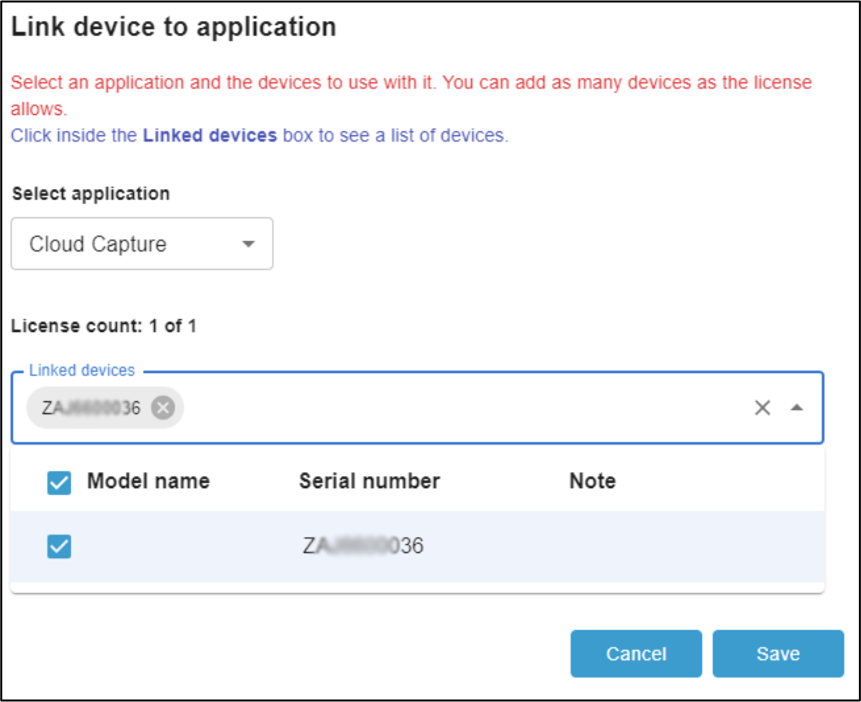
- Confirm that the device has been registered, and click Link to App.
- In the application selection, choose Cloud Capture, select the linked device, and click Save.
- Install the MFP client
- Install the Kyocera Cloud Capture MFP client on any device.
- On the device’s application list screen, activate Cloud Capture.
- Press the Home key on the device and click the KCC application icon.
If the login screen appears, the device setup is complete.