
ECOSYS MZ3201ix
Improve ease and security of sending and receiving.
Enjoy the convenience of a secure and easy-to-use touch panel interface.
-
Intuitive operation screen
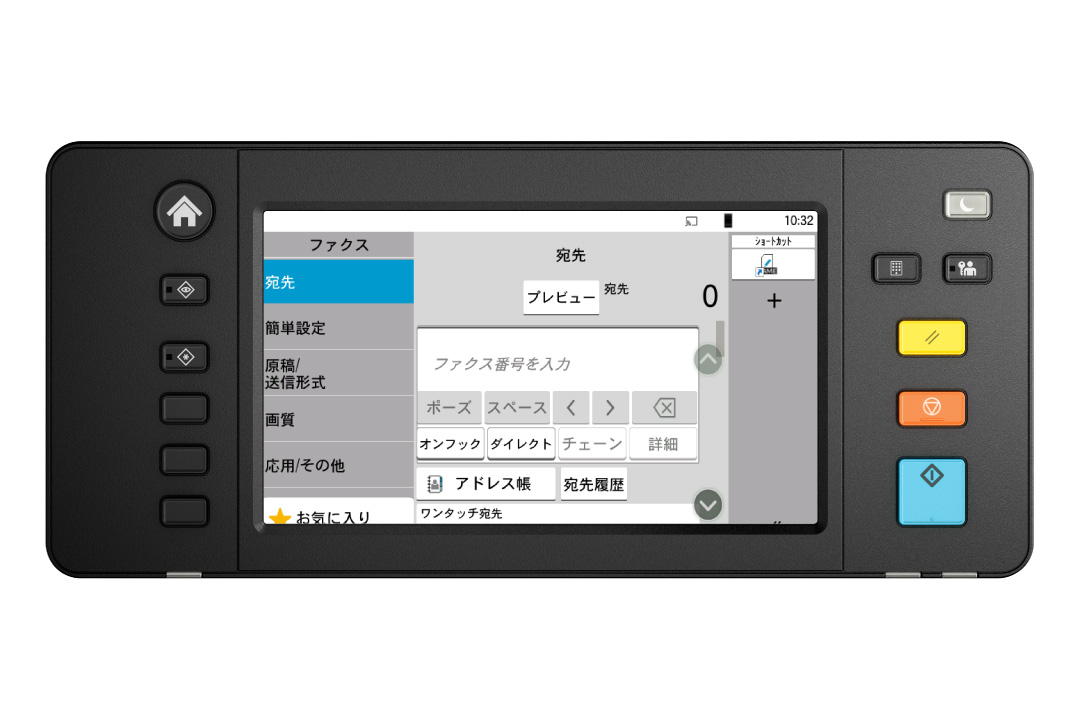
The large touch panel features one-touch buttons and address books for effortless operation, with clear icons and text for easy navigation. Sending is quick and straightforward.
-
Fax document unread notification
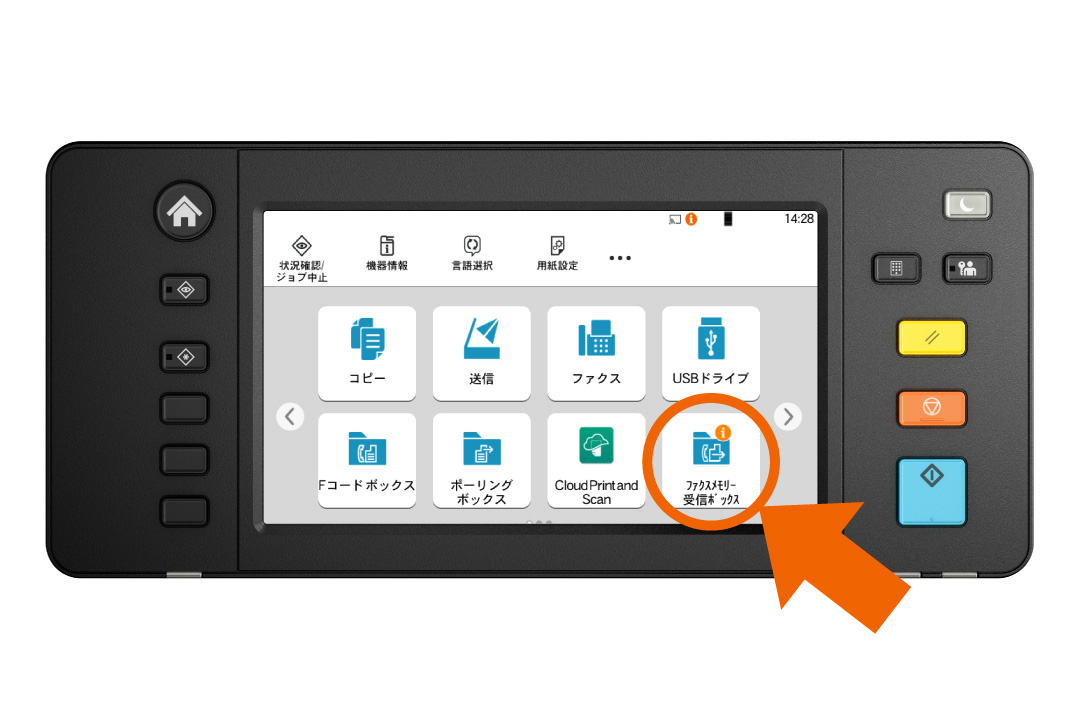
When there is an unread document stored in the fax memory inbox, an alert icon appears on the display.
Up to 300 address book entries
You can register up to 300 individuals and 50 groups of numbers and addresses for fax transmission. In the groups, you can register not only fax numbers, but also e-mail addresses and shared folders on servers and PCs. Boost efficiency by creating a one-touch button to shorten the call operation for frequently used destinations. Up to 100 projects can be registered.
Prevents transmission errors resulting from input errors.
With FASEC1-compliant fax security function, you have the option to verify the entered information before sending through the confirmation screen or by double-pressing the number. Moreover, you can restrict certain settings like "entering numbers using the numeric keypad," "sending to unregistered address book numbers," "redialing," and "broadcasting."
Using digital faxing
Sending and receiving faxes electronically saves time and reduces paper waste.
-
Forwarding received faxes using different methods
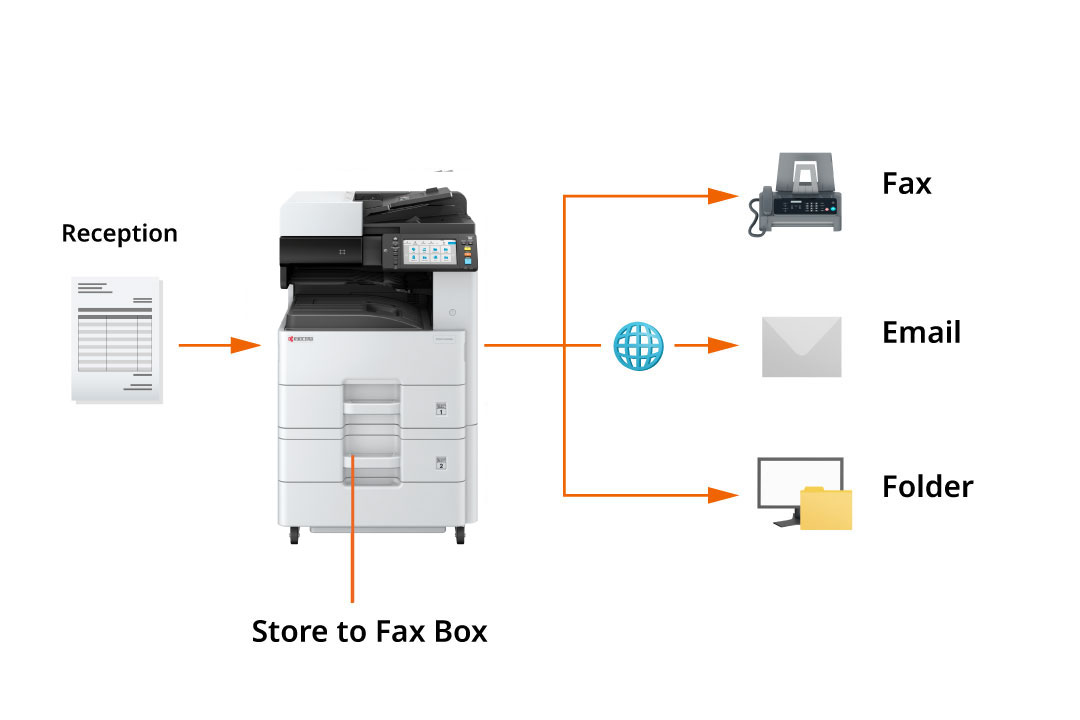
Besides being saved in the machine's fax box, received faxes can be sent to various places like other fax machines, email, folders, etc. You can also establish conditions to restrict forwarding to certain recipients.
*The forwarding destination can be any one of these. -
Avoid printing unwanted faxes
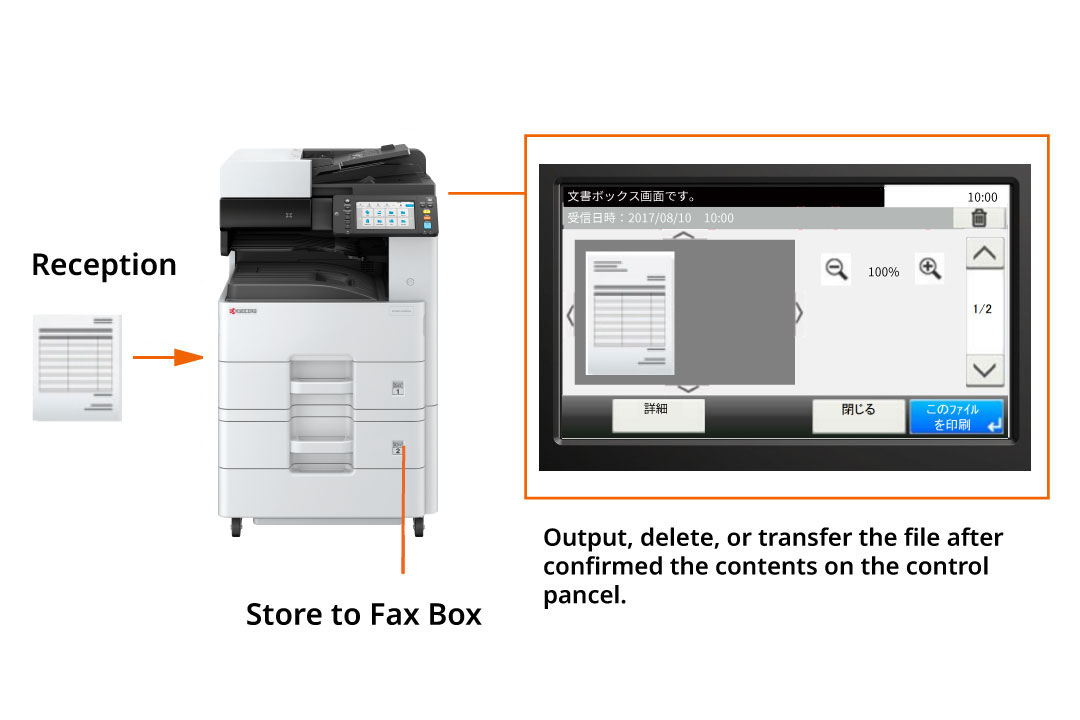
You can print a received fax right away or preview it before printing. The Fax Memory in-box feature keeps received faxes stored in memory. By reviewing the operation panel and printing only the essential documents, you can prevent unnecessary prints like junk faxes.
-
Fax documents directly from your computer
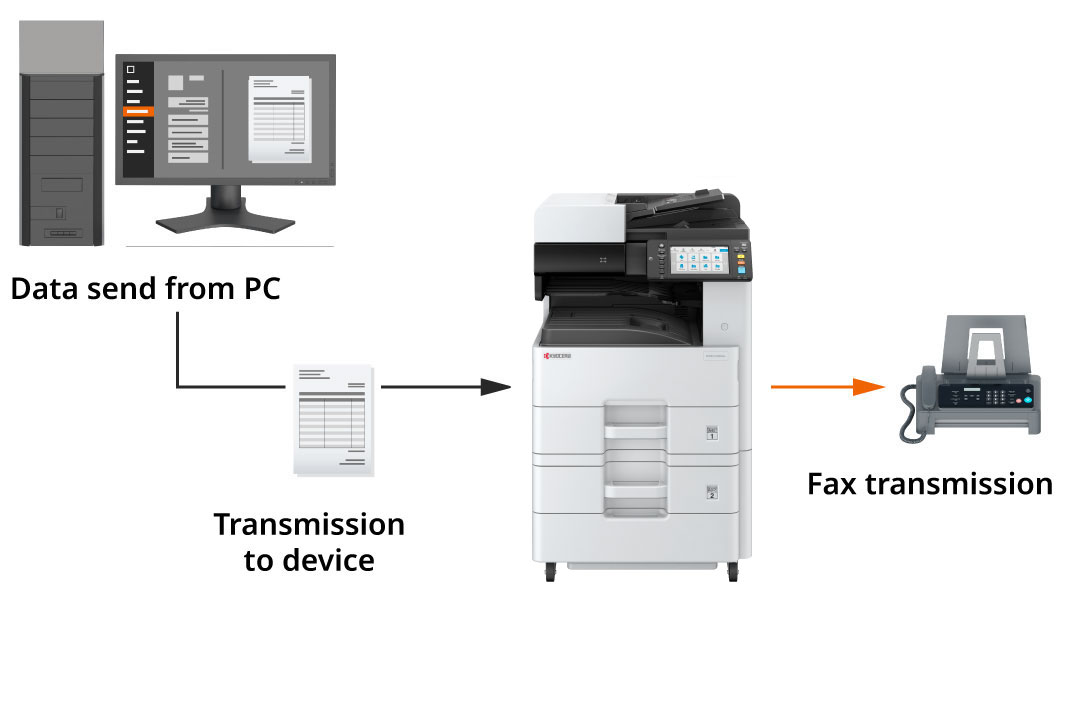
Network Fax is a feature that utilizes the print driver of a computer to transmit faxes. By sending file data directly, you can eliminate the need to physically go to the multifunction device every time you want to send a fax, enabling a paperless workflow. Moreover, this method also helps in reducing costs.
-
Store data when sending faxes
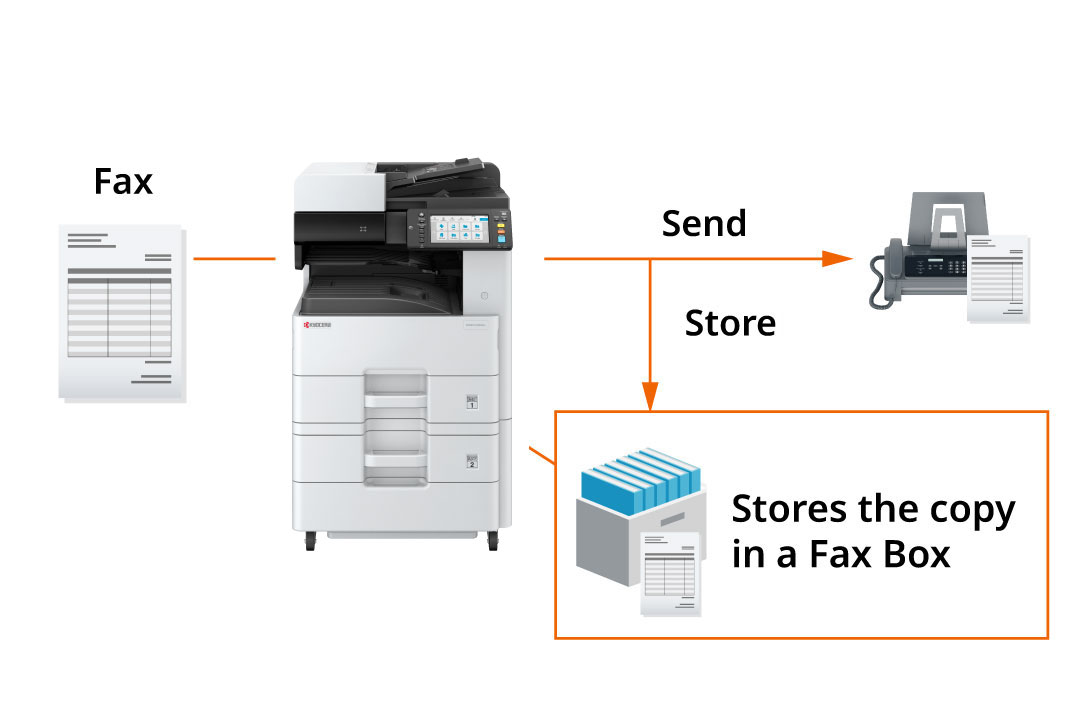
The Save Outbox feature automatically saves sent faxes. Documents in the user box on the multi-function device can be resent, which is useful for recurring order forms.
Different functions developed for simple utilization.
A range of features designed to cater to the fax requirements of businesses.
Support for a wide variety of paper sizes
Supports a range of paper sizes including A4 and A6.
Small characters are transmitted clearly
When sending a fax, adjust the resolution and contrast to match the document, especially for fine details or small text.
Report on send/receive status
View the history of up to 50 sent and received faxes on the operation panel, including their status (Normal/Canceled/Error) and destination. You can also print customizable management reports for the last 50 calls, which can be set to run automatically.
Eliminate paper selection errors by designating the paper cassette
You can choose the cassette that supplies paper for printing. If the printer runs out of paper, it will not automatically pull from the other cassette, ensuring that it does not print on paper of a different size than the original. By setting the output destination after sending a fax, you can prevent mixing it with documents that have been copied or printed.
Simple fax installation
Streamlines fax configuration process when setting up the machine. Users can effortlessly finish the settings by following the step-by-step instructions on the operation panel and proceeding with the wizard-style operations.