
ECOSYS MZ3201ix
Easily generate scanned documents
Captures documents at high speed; Supports customized finishing.
AI functionalities enhance document digitization
New advanced AI features to aid in digitization.
・image defect detection
Automatically identifies image flaws caused by paper tears or sticky notes, providing guidance and notifications for confirmation.
・sensitive document detection
Automatically recognizes information that suggests a document is confidential (such as Confidential, CONFIDENTIAL, etc.) and halts reading to prevent data leaks. Additionally, you can pre-register stamps, watermarks, and phrases for detection.
-
ID Card Scanning
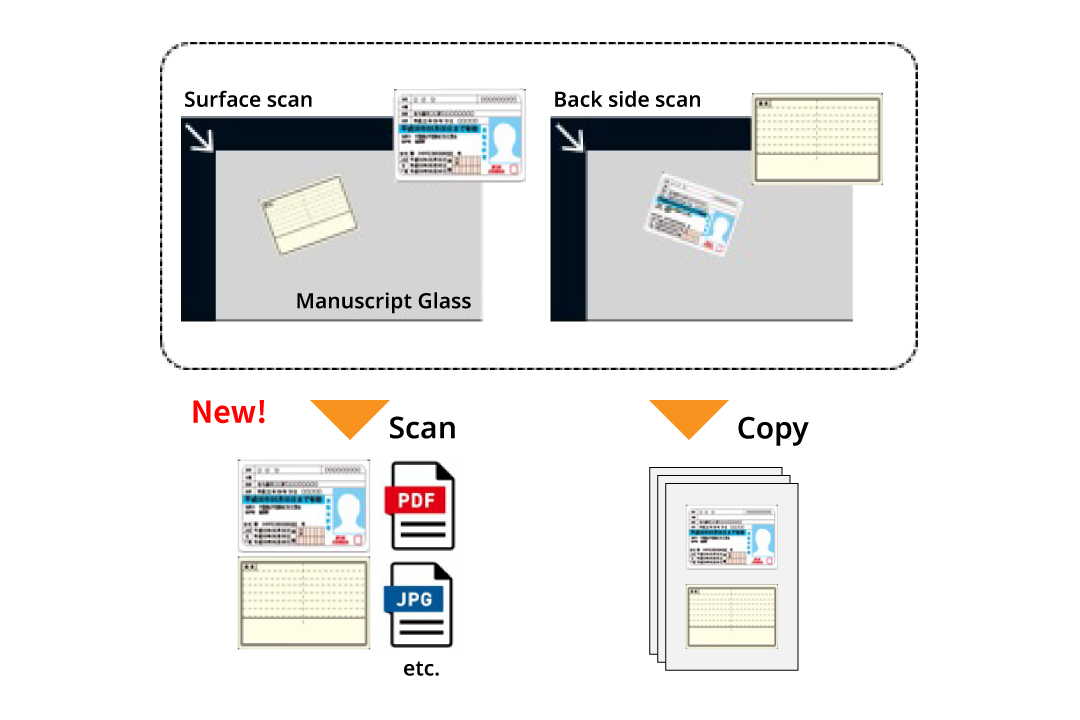
The ID card copying function now includes scanning capabilities that automatically adjust any skew, ensuring the front and back of the card are aligned on a single page, regardless of its initial positioning.
-
Scans multiple receipts and cards in one go
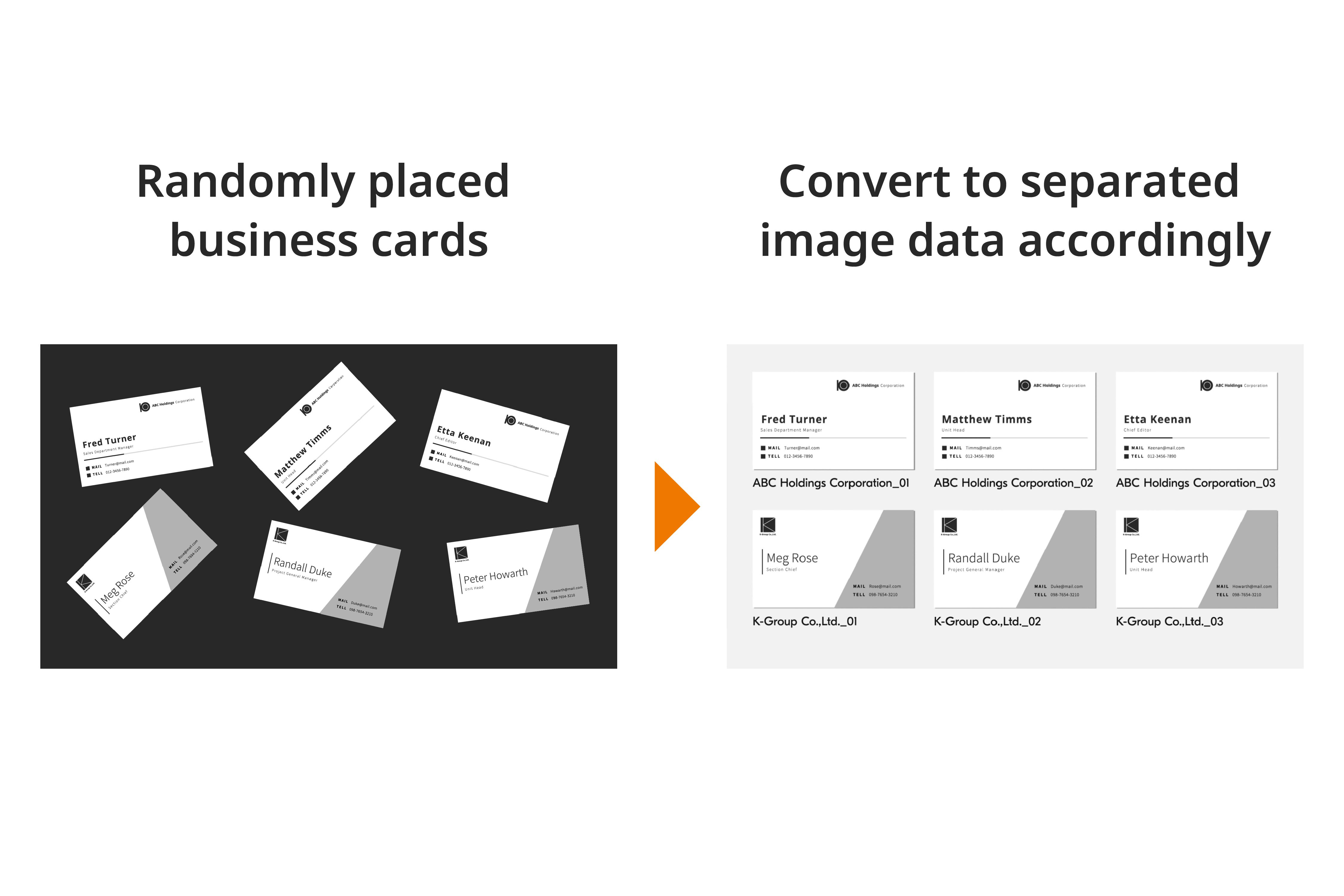
Scanner glass support placing and scanning multiple documents in one batch. Compiling small documents such as receipts and business cards into data has never been easier.
-
High-speed scanning enhances efficiency
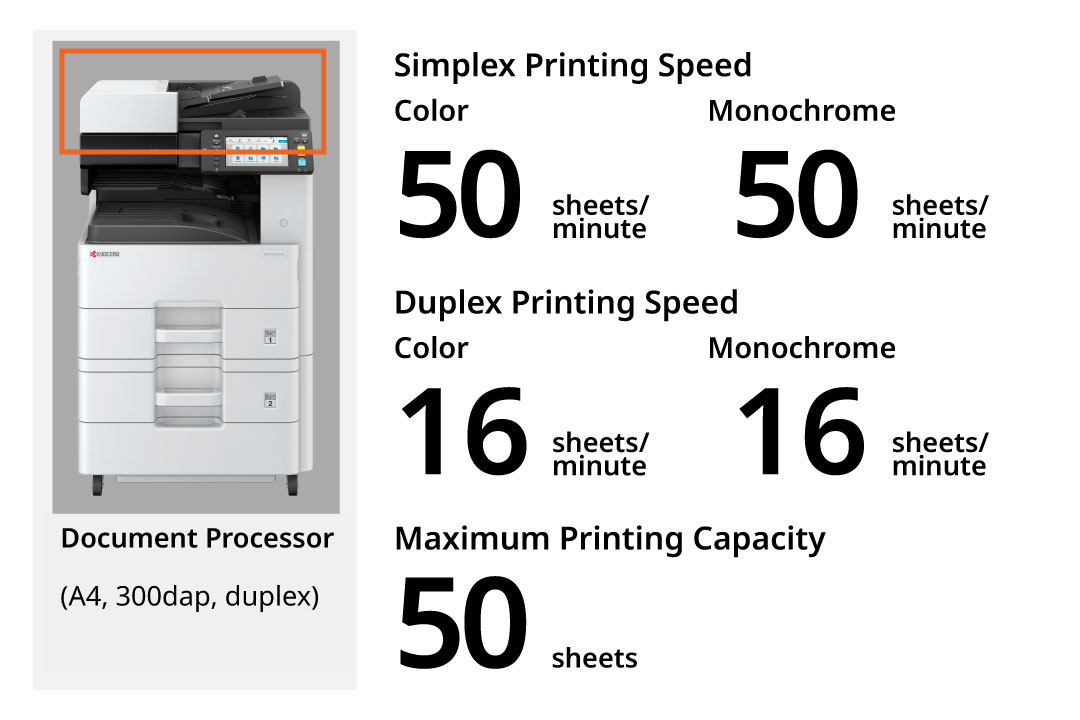
ECOSYS MZ3201ix series offer a stable scanning speed of 50 color and monochrome. You can load up to 50 scanned originals, allowing you to scan a large number of originals at one time.
*When scanning at A4 and 300 dpi (text and photo mode) -
Easy-to-use address book
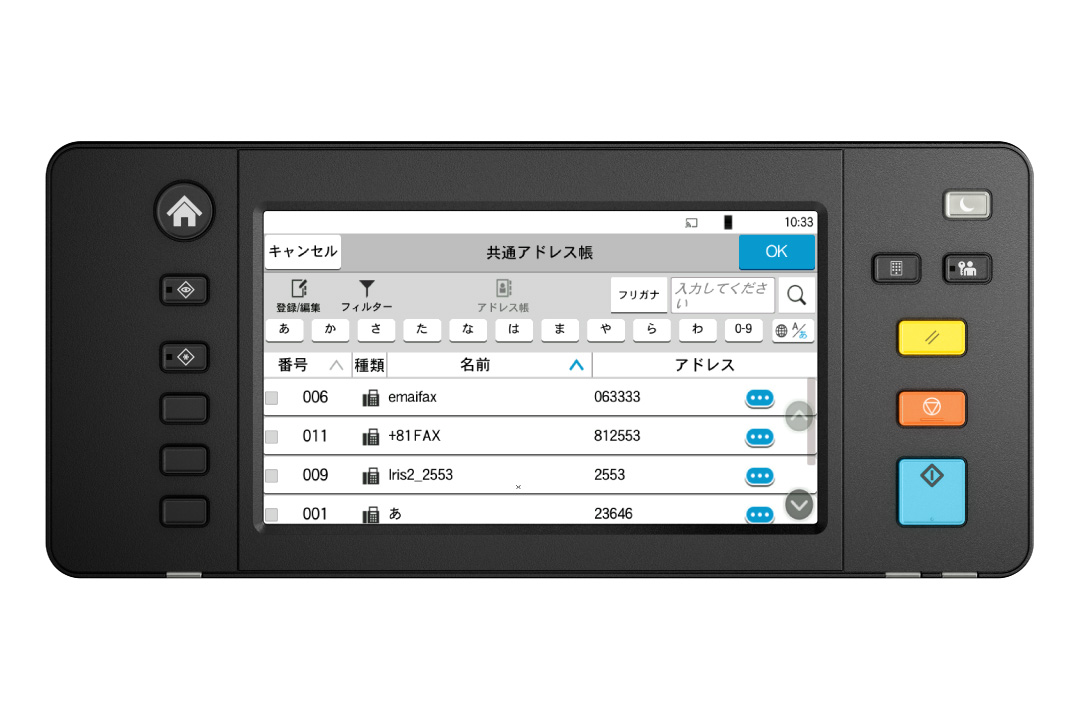
Multiple transmission methods (Mail, SMB/FTP folder, fax) can be registered for each item in the address book. The device could store up to 300 entries for individuals and 50 entries for groups and supports batch transmission with different transmission methods at a time. In addition, you can register shortcut keys for up to 100 frequently used destinations.
*Up to 100 recipients can be included in the mass email. If including folders, up to 5 folders can be selected (SMB, FTP). -
Skip blank pages
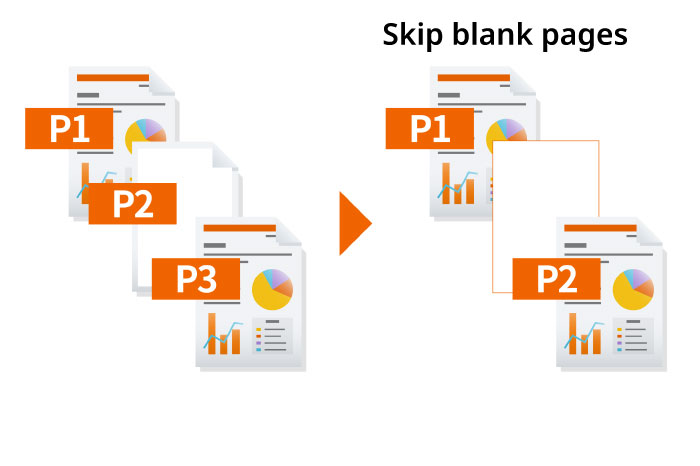
The machine will automatically detect and skip any blank pages in the documents placed in the document feeder. This feature eliminates unnecessary pages and enhances the overall appearance of the scanned documents.
Easily resend to the previous recipient's address
Quickly configure sending from your sending history's destination.
Split/Batch Scan
The scanned data collectively read can be divided into individual pages, or conversely, the data scanned page by page can be combined into one single file.
Scanning double-page spreads into left and right pages
For a scanned image that has been saved as spreads, such as a scanned image of a book or pamphlet, the device could detect and split the scanned image into two pages on the left and right sides.
Enhanced utilization of scanning
Various settings and integration features can be used for efficient and secure document handling.
-
Supports a wide range of document formats
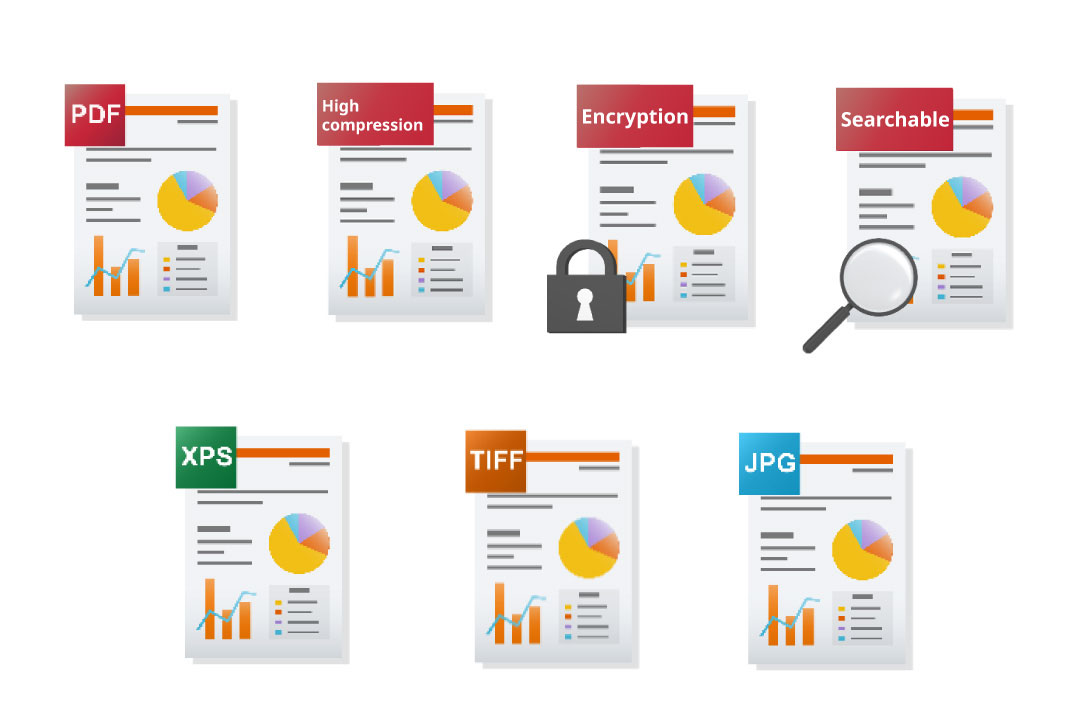
The scanned document could be converted into various formats that match your needs, including PDF(high-compression), encrypted PDF, searchable PDF(PDF files enabling text search by extracting text from scanned images *), XPS, TIFF, and JPEG.
*Optional -
Create PDF files with high-level security features
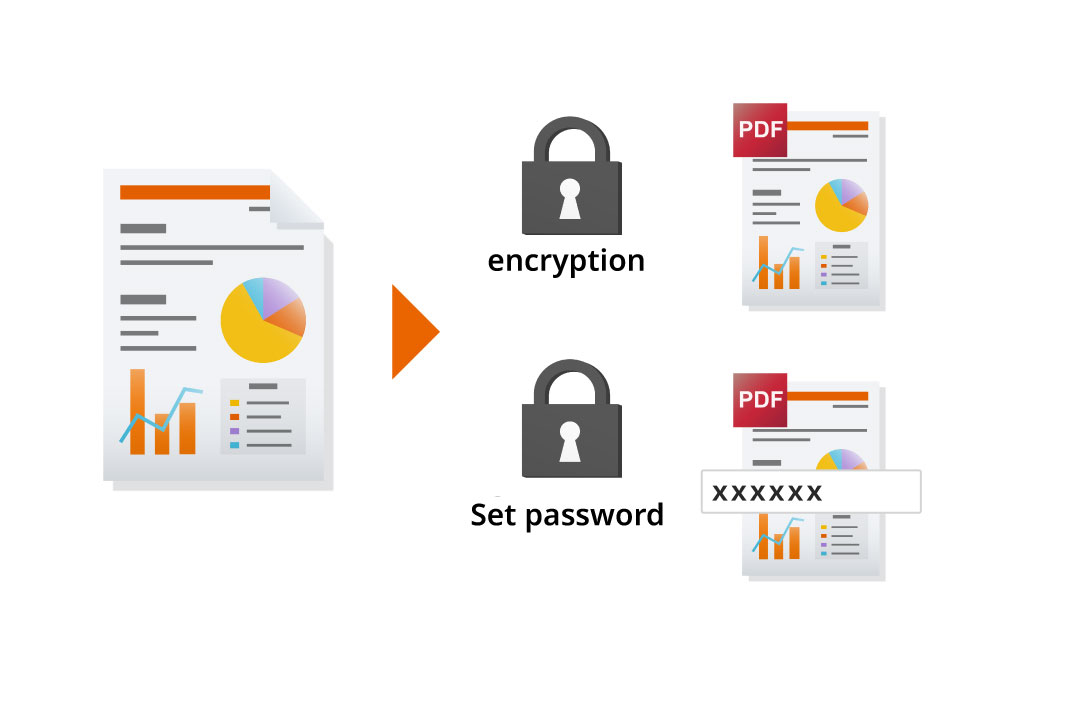
When converting scanned documents to PDF, you can enhance security with password protection and encryption. Customize passwords for viewing, printing, and editing to meet your data protection needs.
-
Automate document organization
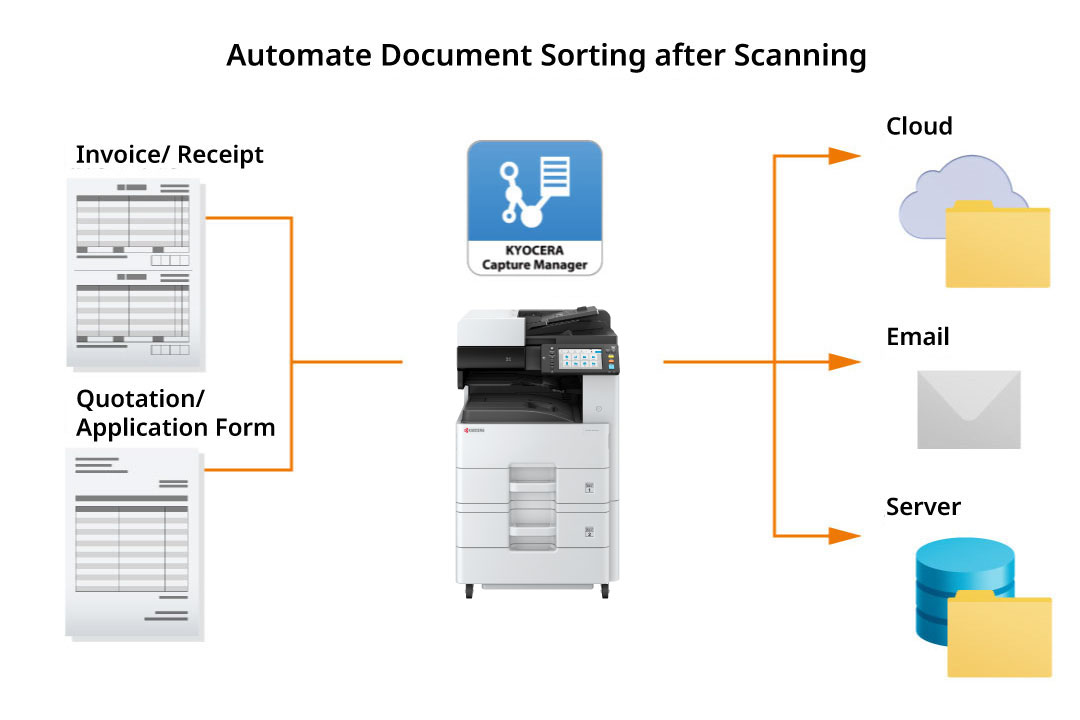
KYOCERA Capture Manager*
Click here for application details.
With KYOCERA Capture Manager, you can automate sorting and data entry for forms and invoices, reducing manual effort and errors. When a document is scanned from the MFP, its text, image, and barcode data are captured and sent to the cloud or system. The data is then processed and organized based on predefined rules for efficient document registration.
*Optional
Automatically allocate delivery destinations
By installing the free "File Management Utility" software on the PC, you can easily receive pop-up notifications when scanned documents are added to a designated network folder (NAS) or PC folder. You can also assign numbers and dates to these documents and organize them into separate folders based on specific conditions. This streamlined solution allows you to efficiently manage all your scanned data.
Scanning Features That Fits Your Way of Working
Various scanning transmissions method for different destination devices and locations.
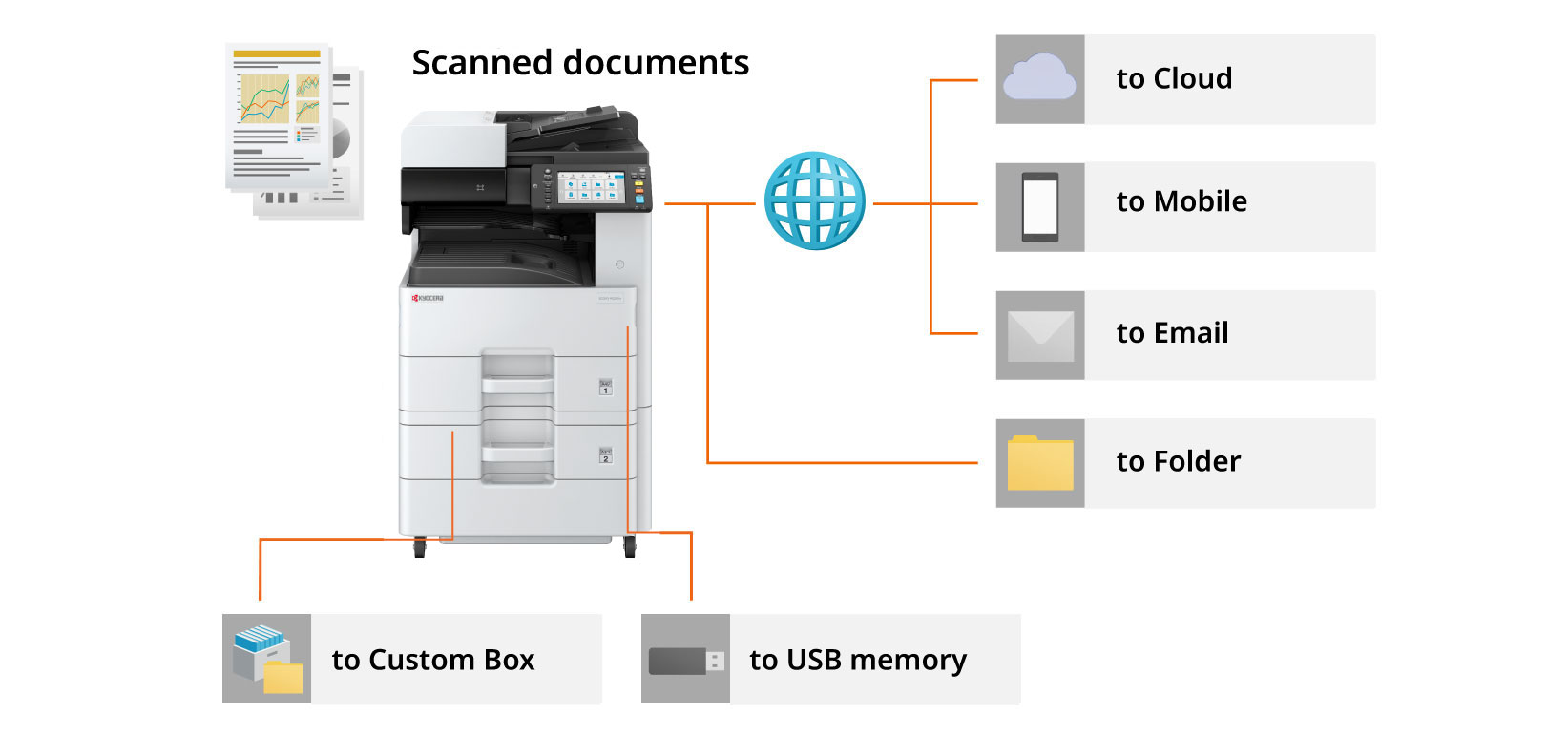
Scan to Cloud
KYOCERA Cloud Print and Scan* Click here for application details.
This application enhances the scanning and printing capabilities of multifunction devices via the cloud. Users who are registered can log in using a PIN code or IC card *1, allowing them to save and print data directly from the multifunction device to the cloud service. If you require a document urgently while away from the office, you can send it to the cloud from an in-house multifunction device and access it immediately on your mobile device.
*The application is pre-installed.
*Additional license agreement is required.
*1 Optional Support
Scan to Mobile Devices
With the use of "KYOCERA Mobile Print" app, you have the ability to conveniently save scanned documents from your MFP to your mobile device. Supported file formats include JPG, TIFF, and PDF, and you can easily transfer scanned data using the email app on your device.
Scan to Email
You can send scanned documents as email attachments with one touch by registering email addresses in the address book. You can also edit the subject and message from the device.
Scan to Folder
Scanned documents can be saved in a specified PC folder that has been set up for sharing on the network. It can also be saved to a shared folder such as network HDD (NAS) and servers. Scan data can be shared and viewed within the company.
Scan to Userbox
Scanned documents can be stored in the user box (a storage space created by individuals or groups) on the multifunction device. Users can download the data from a PC using a web browser (COMMAND CENTER RX), or they can share scanned data without concerns about file size by emailing a download URL.
*Optional
Scan to USB
Documents can be scanned directly to a USB Flash Memory Drive if the feature is enabled. It requires no PC! You can also access hierarchical folders such as subfolders in the USB Drive from the device directly.
Send using multiple methods simultaneously
The multitasking controller integrates circuits for all functions, allowing for smooth fax sending and receiving through simultaneous processing of multiple tasks. Sending data is as easy as pressing a single button. Furthermore, the address book can be set up to dial faxes, access SMB folders, send emails, and more with just one button. This simplifies the process of distributing and sharing information, increasing productivity when working with documents.
Other Scanning Features
Document/Transmission Settings
●Original Size (Auto Detect/Custom) ●Sending Size (Fixed/Custom) ●Mixed Size Originals (process documents of different sizes all at once)* ●Continuous Scan (Batch processing of files read separately) ●File Separation ●Duplex, Orientation and Binding Orientation ●Original Orientation ●Reduction/Enlargement ●Centering ●Border Erase (Erase the black border that forms around the image) ●Full Scan (scans original without white margins) ●File Name Entry ●Add Subject/Body when sending a document ●Document name input ●Subject/body text setting when sending mail ●Skip blank pages ●Long document (long document can be read from the document feeder)
Send File Format
TIFF, JPEG, XPS, Open XPS, PDF (MMR compression/JPG compression/High compression), Encrypted PDF, OCR Character Recognition*
*Options Scan extension kit (A)
Image quality of the document
●Scanning Resolution (600 dpi, 400 dpi, 300 dpi, 200 dpi, 200 × 100 dpi, 200 × 400 dpi) ●Document density ●Original image (Text, Text+Photo, Photo) ●Color Selection (Full color, black and white) ●Background color adjustment ●Blur prevention ●Contrast ●Sharpness.
Destination Settings
●Direct Input (Folder, E-mail, Fax) ●Select from Address Book (Built-in Address Book, LDAP Address Book, Personal Address Book in PC) ●User box (Multi-function peripheral storage available for each user or group: Settings from the User Box display) ●USB flash drive (set from the USB flash drive display)
Address Book
●Search by names ●Import or export of address book data ●Print address book ●Address book permission setting
Scanning transmission method/protocol
●Send by PC (SMB, FTP, FTP encryption) ●Send by Mail (SMTP) ●Send by Windows Server Authentication (WSD/DSM) ●Send by Scanner Driver (TWAIN, WIA)
Other Features
●Print Outbox ●Save Outbox ●Check File Size Before Sending ●Add Stamp (Character stamp and serial number stamp)