
TASKalfa MZ2502/MZ2202
Easily generate scanned documents
Captures documents at high speed; Supports customized finishing.
-
ID Card Scanning
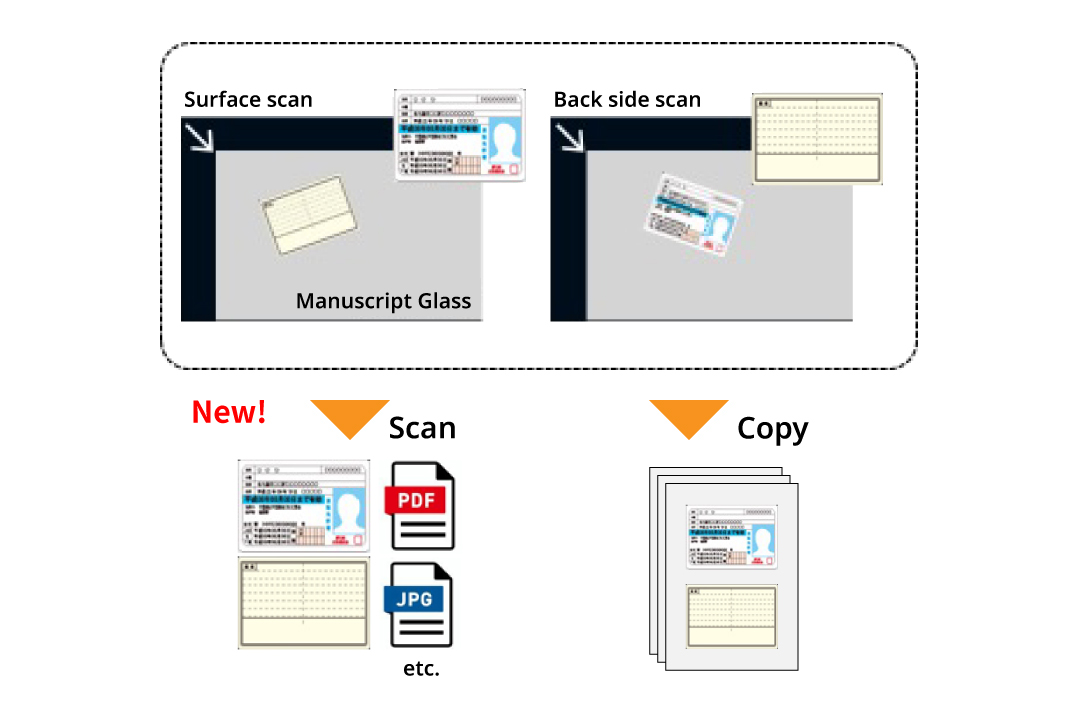
The ID card copying function now includes scanning capabilities that automatically adjust any skew, ensuring the front and back of the card are aligned on a single page, regardless of its initial positioning.
-
High-speed scanning enhances efficiency
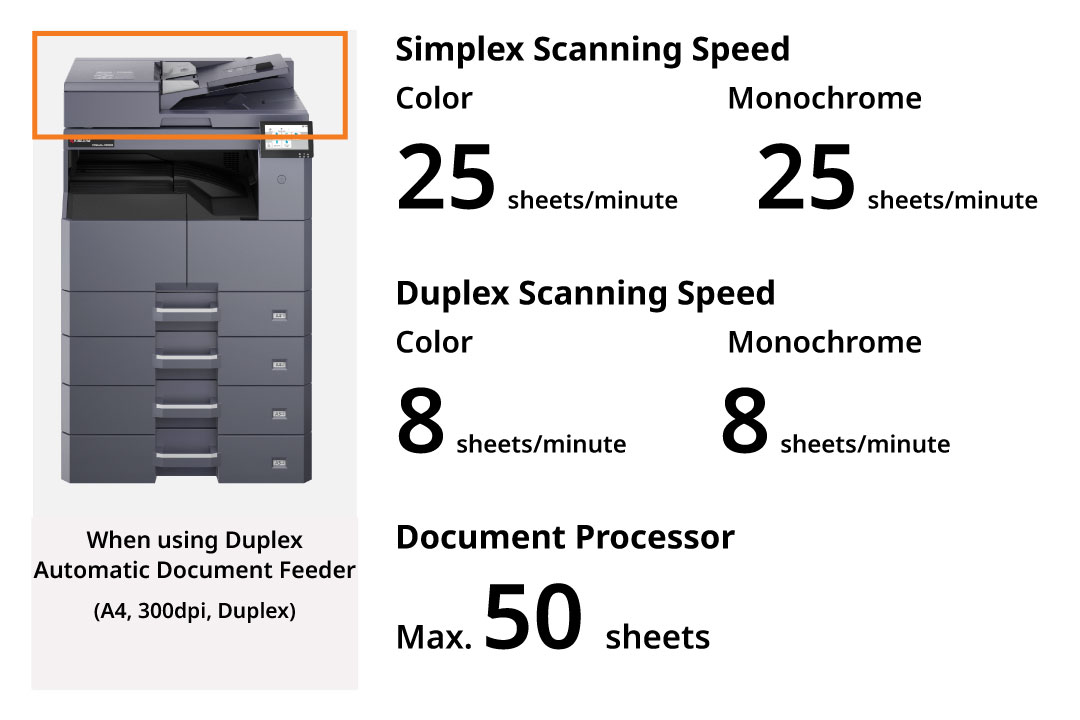
TASKalfa MZ2502 series offer a stable scanning speed of 25 color and monochrome. You can load up to 50 scanned originals, allowing you to scan a large number of originals at one time.
*When scanning at A4 and 300 dpi (text and photo mode) -
Skip blank pages
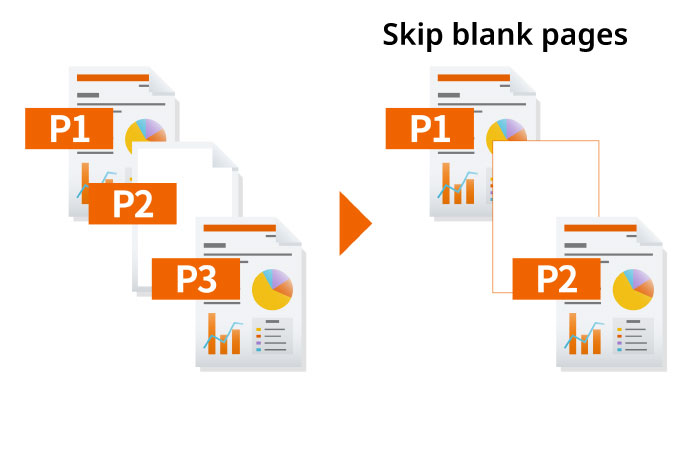
The machine will automatically detect and skip any blank pages in the documents placed in the document feeder. This feature eliminates unnecessary pages and enhances the overall appearance of the scanned documents.
Easy-to-use address book
Multiple transmission methods (Mail, SMB/FTP folder, fax) can
be registered for each item in the address book. The device
could store up to 300 entries for individuals and 50 entries
for groups and supports batch transmission with different
transmission methods at a time. In addition, you can register
shortcut keys for up to 100 frequently used destinations.
*Up
to 100 recipients can be included in the mass email. If
including folders, up to 5 folders can be selected (SMB, FTP).
Easily resend to the previous recipient's address
Quickly configure sending from your sending history's destination.
Split/Batch Scan
The scanned data collectively read can be divided into individual pages, or conversely, the data scanned page by page can be combined into one single file.
Scanning double-page spreads into left and right pages
For a scanned image that has been saved as spreads, such as a scanned image of a book or pamphlet, the device could detect and split the scanned image into two pages on the left and right sides.
Enhanced utilization of scanning
Various settings and integration features can be used for efficient and secure document handling.
-
Create PDF files with high-level security features
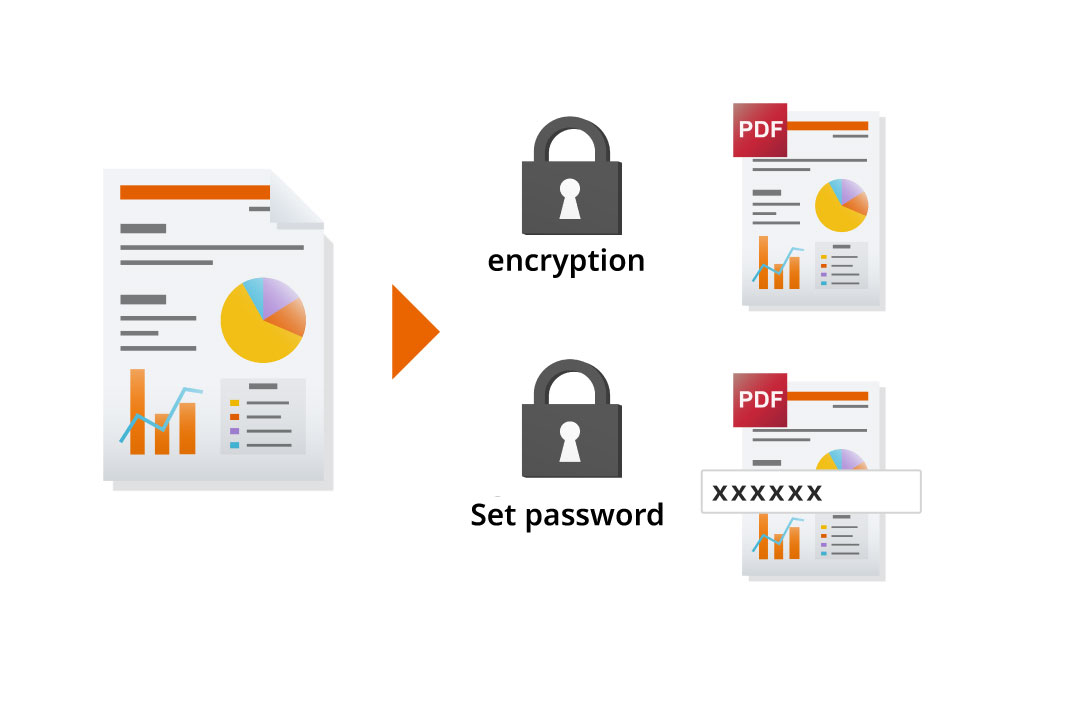
When converting scanned documents to PDF, you can enhance security with password protection and encryption. Customize passwords for viewing, printing, and editing to meet your data protection needs.
Supports a wide range of document formats
The scanned document could be converted into various formats that match your needs, including TIFF (MMR compression), JPEG, XPS, OpenXPS, PDF (MMR compression), PDF (JPEG compression), and PDF (high compression).
Automatically allocate delivery destinations
By installing the free "File Management Utility" software on the PC, you can easily receive pop-up notifications when scanned documents are added to a designated network folder (NAS) or PC folder. You can also assign numbers and dates to these documents and organize them into separate folders based on specific conditions. This streamlined solution allows you to efficiently manage all your scanned data.
Scanning Features That Fits Your Way of Working
Various scanning transmissions method for different destination devices and locations.
Scan to Mobile Devices
With the use of "KYOCERA Mobile Print" app, you have the ability to conveniently save scanned documents from your MFP to your mobile device. Supported file formats include JPG, TIFF, and PDF, and you can easily transfer scanned data using the email app on your device.
Scan to Email
You can send scanned documents as email attachments with one touch by registering email addresses in the address book. You can also edit the subject and message from the device.
Scan to Folder
Scanned documents can be saved in a specified PC folder that has been set up for sharing on the network. It can also be saved to a shared folder such as network HDD (NAS) and servers. Scan data can be shared and viewed within the company.
Scan to USB
Documents can be scanned directly to a USB Flash Memory Drive if the feature is enabled. It requires no PC! You can also access hierarchical folders such as subfolders in the USB Drive from the device directly.
Send using multiple methods simultaneously
The multitasking controller integrates circuits for all functions, allowing for smooth fax sending and receiving through simultaneous processing of multiple tasks. Sending data is as easy as pressing a single button. Furthermore, the address book can be set up to dial faxes, access SMB folders, send emails, and more with just one button. This simplifies the process of distributing and sharing information, increasing productivity when working with documents.
Other Scanning Features
Document/Transmission Settings
●Original Size (Auto
Detect/Custom) ●Sending Size (Fixed/Custom) ●Mixed Size
Originals (process documents of different sizes all at once)*
●Continuous Scan (Batch processing of files read separately)
●File Separation ●Duplex, Orientation and Binding Orientation
●Original Orientation ●Reduction/Enlargement ●Centering
●Border Erase (Erase the black border that forms around the
image) ●Full Scan (scans original without white margins) ●File
Name Entry ●Add Subject/Body when sending a document ●Skip
Blank Pages
Image quality of the document
●Scanning Resolution (600
dpi, 400 dpi, 300 dpi, 200 dpi, 200 × 100 dpi, 200 × 400 dpi)
●Document density ●Original image (Text, Text+Photo, Photo)
●Color Selection (Full color, black and white)
Destination Settings
●Direct Input (Folder, E-mail, Fax)
●Select from Address Book (Built-in Address Book, LDAP Address
Book, Personal Address Book in PC)
Address Book
●Search by names ●Import or export of
address book data ●Print address book ●Address book permission
setting
Scanning transmission method/protocol
●Send by PC (SMB,
FTP, FTP encryption) ●Send by Mail (SMTP) ●Send by Windows
Server Authentication (WSD/DSM) ●Send by Scanner Driver
(TWAIN, WIA)
Other Features